Pages

Ads


Thursday, January 2, 2014

Wednesday, January 1, 2014

Jilla Teaser 2 | HD Offcial [2014]

0 comments

How to Change Your Mouse Pointer

0 comments
With Windows XP, you can customize your mouse pointer. This can be done for free, without any downloads. Read on to discover how this is done.


Follow the instructions below to rid your screen of the conventional mouse pointer and select new a one:

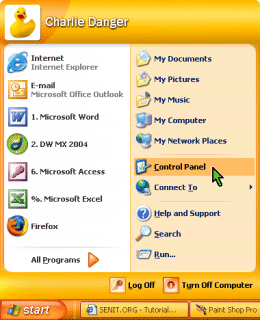
1. Click on Start on the taskbar.


2. Select Control Panel.
3. After that, click on Printers and Other Hardware.


4. Choose Mouse.
5. In the window that pops-up, go to the Pointer Tab.
6. Now, you can choose from the various schemes that are available.

To mix and match your own pointers, use the following steps:
1. Click on the pointer that you want to change.
2. Then click on the Browse button.
3. Choose your pointer.


4. Hit OK.

After you are done, click on OK.

Download my cursors  >>>> FREE <<<<< Download my cursors

Free SWF to GIF Converter 2.0 | Setup.exe

0 comments
Convert Flash SWF to animated GIF format.
This software allows you to turn SWF format into animated GIF image. Just load your Flash file and click "Convert"! You will get tiny GIF animation image, which may be used on your site instead of hard Flash

Free SWF to GIF Converter Windows 8 description

This software allows you to turn SWF format into animated GIF image. Just load your Flash file and click "Convert"! You will get tiny GIF animation image, which may be used on your site instead of hard Flash. Another advantage of GIF files is plug-to-plug compatibility with any browser on any system. Unlike GIF format, SWF requires Flash player plug-in installed in browser, so you can lose your potential customers if they don't have that plug-in.

Download                                                                                                                          Download

Folder Colorizer Setup.exe

0 comments

Let us play with graphics in C | keep learning ,keep sharing

0 comments
Many times my school mates come to me an said how bore to program in C . we are getting output on black  screen ,if we are using programming languages like VB we can play with graphics .what a hell it is not in our syllabus .so this post is dedicated to them. Let us play with C.colorful texts backgrounds,shapes ,animations ,different fonts etc and create what ever you want in your own passion ,Here for compiling this program I used TURBO C++ 3.0 . for getting graphical output on your windows 7 or windows 8 you can use the following ways...
  • Use DOSBOX ,download and install it, and configure it.
  • Go to safe mode and open TURBO C++ compiler ,usually resolution will be comfortable to IDE
  • Use windows xp, in virtual box or WM ware workstation 
For implementing graphics in TURBO C++ 3.0 you have to use the header file “graphics.h” and the library file called “graphics.lib “ ,

First thing that we need to do before we can carry out any drawing activity is switch over the graphics mode . depending on the adapter and the monitor installed in your computer only some of graphics mode may available to you , display adapters are actually working in putting a picture on the screen .
To switch over to the graphics mode that offers best resolution we need to call the function initgraph() it will figure out the best resolution and puts the number corresponding to that mode in the variable “gm”, gm tells us which monitor are we are using ,and we need one more argument to this function say “gd” it is to mention device driver . Turbo C++  offers certain graphics drivers ,these are the files with extension BGI .depending upon what adapter we are using on of the adapter may get selected.

 So let us have a look on a sample program ,

 This program will change background color on each hit on any key in the keyboard
# include <stdio.h>
# include<graphics.h>
# include <conio.h>
Void main()
{
 int gd=DETECT,gm,i;
initgraph(&gd,&gm,””);
detectgraph(&gd,&gm);
for(i=0;i<=10;i++)
{
   getch();
   setbkcolor(i);
}
closegraph();
getch();


}

Nokia secret codes | Share this post to all your friends

0 comments
*#7780# :reset to factory settings.
*#67705646# :This will clear the LCD display (operator logo).
*#0000# :To view software version.
*#2820#: Blue tooth device address.
*#746025625# :Sim clock allowed status.
*#62209526# : Display the MAC address of the WLAN adapter. This is available only in the newer devices that support WLAN
#pw+1234567890+1#: Shows if sim have restrictions.
*#92702689# : takes you to a secret menu where you may find some of the information below:
1. Displays Serial Number.
2. Displays the Month and Year of Manufacture
3. Displays (if there) the date where the phone was purchased (MMYY)
4. Displays the date of the last repair – if found (0000)
5. Shows life timer of phone (time passes since last start)
*#7328748263373738# resets security code.  Default security code is 12345
Warranty Codes  * # 92702689 # [* # war0anty #]


Spam